BBS
DVMUG Home Page

DVMUG’s BBS runs on software called FirstClass. It is recommended that you download the “client”–user–software to connect to the BBS server.
FirstClass Client Download
For macOS 10.13 and later
DVMUG BBS 16.210 (22 Mb)
FirstClass Mobile 16 for iPhone and iPad.
For iOS 8 and later
apps.apple.com/us/app/firstclass-mobile/id310607705
For Windows
dvmug.org/FCC16210.msi
The server for the DVMUG BBS is: fc.dvmug.org
(TCP/IP) Port 510
Install FirstClass Client for DVMUG BBS
Double Clink the icon DVMUG BBS Install to install the software.
After installation you will find the FirstClass application in your Applications folder. Drag the FirstClass icon in your Applications folder onto the Dock.
Click on the FirstClass icon after placing it in your Dock to setup the DVMUG BBS
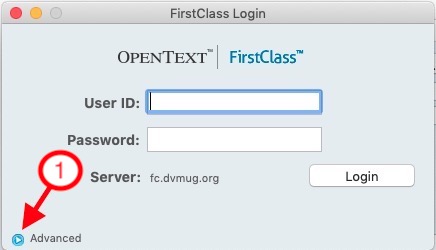
In the FirstClass Login window
Click on the blue triangle next to Advanced
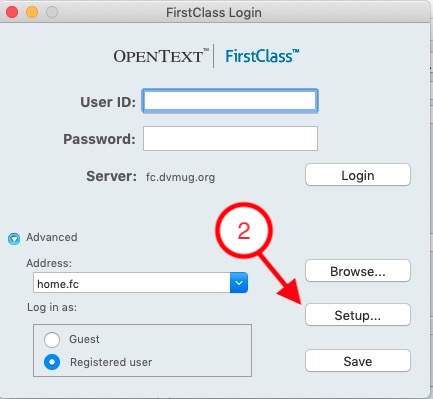
In the FirstClass Login window Click on the Setup... Button
In the Service Setup window
Select Connect via:
DSL-CableModen.FCP
and enter
Server: fc.dvmug.org
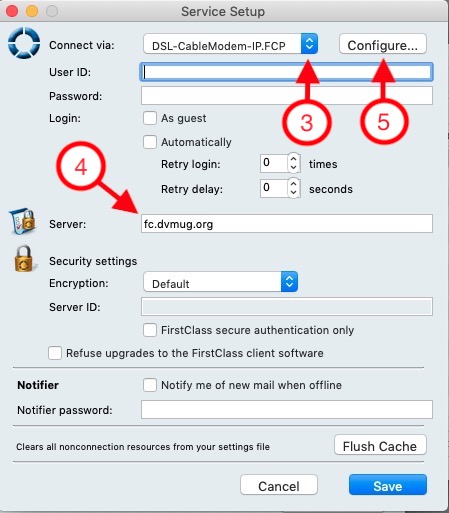
Click the Configure... Button in the top right
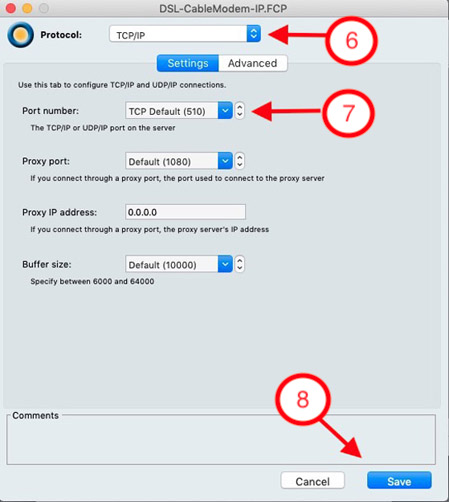
In the DSL-CableModem.FCP window.
Select Protocol: TCP/IP and
Select Port number: TCP Default (510)
Click on the blue Save button on the bottom right.
In the Service Setup window.
Click on the blue Save button on the bottom right.
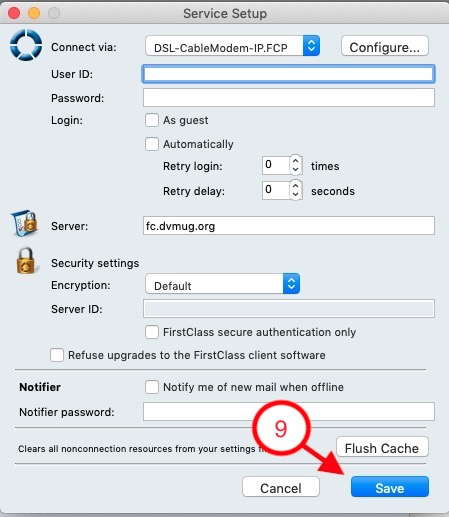
You can choose your own User ID and Password.
After entering you chosen User ID and Password, click on the Save button. Click the Green Button with the White Arrow to Log In.
Fill out the Autoregistraton screen.
Fill out the Request Validation message in the START HERE folder.